
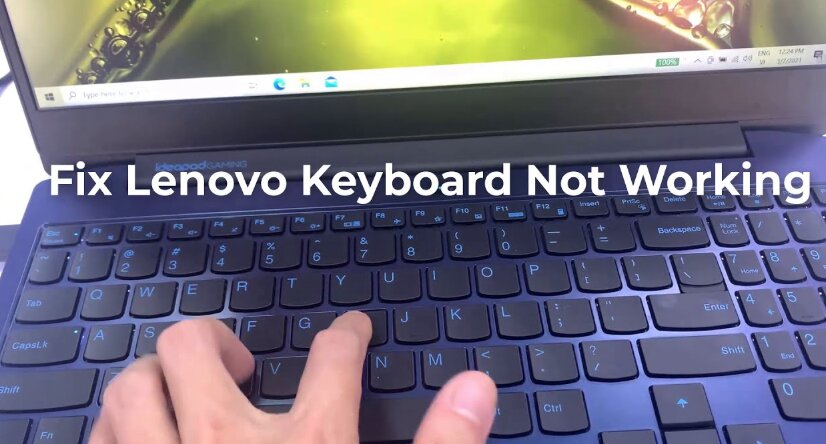
Is your Lenovo keyboard not working? Whether you’re using a Lenovo ThinkPad, IdeaPad, Yoga, Legion, or another Lenovo laptop, a non-responsive keyboard can quickly bring productivity to a halt.
The good news is that keyboard issues are often caused by software glitches, outdated drivers, accidental settings changes, or temporary system errors—not necessarily hardware failure. In many cases, you can get your Lenovo keyboard working again in just a few minutes.
This guide walks through the most common causes and proven solutions for fixing a Lenovo keyboard that has stopped working.
Why Is My Lenovo Keyboard Not Working?
There are several reasons why a Lenovo keyboard may suddenly stop responding.
Common causes include:
- Corrupted keyboard drivers
- Windows update issues
- Disabled keyboard settings
- Filter Keys being enabled
- Function key lock settings
- BIOS configuration problems
- Hardware damage
- Dust or debris under keys
- Faulty keyboard ribbon connections
- Battery or power management issues
The exact fix depends on whether the problem is affecting the entire keyboard or only certain keys.
Quick Fixes to Try First
Before diving into advanced troubleshooting, try these simple solutions.
Check if the laptop is frozen
Sometimes the keyboard appears broken when Windows has actually become unresponsive.
Press:
Ctrl + Alt + Delete
If the security screen appears, your keyboard is likely functioning properly.
Connect an external keyboard
If you have a USB keyboard available, plug it in.
If the external keyboard works, the issue is likely isolated to the laptop’s built-in keyboard.
Restart the computer
Temporary Windows glitches often disappear after a restart.
Many users overlook this simple step, but it frequently resolves keyboard issues.
Restart Your Lenovo Laptop
A full restart can clear temporary software conflicts that prevent the keyboard from functioning correctly.
How to restart:
- Click Start
- Select Power
- Choose Restart
If the keyboard doesn’t work at all:
- Hold the power button for 10 seconds
- Wait 30 seconds
- Turn the laptop back on
This performs a hard reboot and may restore keyboard functionality.
Check for Physical Keyboard Problems
Not every keyboard issue is software-related.
Inspect your Lenovo keyboard carefully for:
- Dirt and debris
- Liquid damage
- Stuck keys
- Broken keycaps
- Physical wear
Dust buildup is surprisingly common, especially on older laptops.
Cleaning the keyboard
- Turn off the laptop
- Disconnect power
- Use compressed air
- Gently clean between keys
Avoid spraying liquids directly onto the keyboard.
Disable Filter Keys
Filter Keys is a Windows accessibility feature that can make the keyboard appear unresponsive.
Many users accidentally enable it without realizing it.
Turn off Filter Keys
- Open Settings
- Select Accessibility
- Click Keyboard
- Locate Filter Keys
- Turn it Off
After disabling Filter Keys, test your keyboard again.
Update or Reinstall Keyboard Drivers
Corrupted drivers are one of the most common reasons a Lenovo keyboard stops working.
Update Keyboard Drivers
- Press Windows + X
- Select Device Manager
- Expand Keyboards
- Right-click your keyboard
- Select Update Driver
- Choose Search Automatically
Windows will search for the latest driver.
Reinstall Keyboard Drivers
If updating doesn’t help:
- Open Device Manager
- Expand Keyboards
- Right-click the keyboard
- Select Uninstall Device
- Restart the computer
Windows automatically reinstalls the driver during startup.
Run the Windows Keyboard Troubleshooter
Windows includes built-in troubleshooting tools that can identify keyboard problems.
To run the troubleshooter:
- Open Settings
- Go to System
- Select Troubleshoot
- Click Other Troubleshooters
- Locate Keyboard
- Run the troubleshooter
Windows will scan for common issues and recommend fixes.
Check Lenovo Hotkeys and Function Lock
Many Lenovo laptops include special function key settings.
Sometimes users accidentally enable Function Lock (Fn Lock), causing unexpected keyboard behavior.
Common Lenovo Fn Lock Shortcut
Press:
Fn + Esc
This toggles Function Lock on many Lenovo models.
If your keyboard behaves strangely or certain keys don’t respond, this may solve the problem.
Update Windows
An outdated Windows installation can sometimes interfere with keyboard functionality.
Check for updates
- Open Settings
- Click Windows Update
- Select Check for Updates
- Install available updates
- Restart the system
Microsoft frequently releases bug fixes related to hardware compatibility.
Update Lenovo BIOS
The BIOS controls communication between hardware components and the operating system.
An outdated BIOS may cause keyboard detection issues.
To update BIOS safely
- Visit Lenovo Support
- Enter your laptop model
- Download the latest BIOS update
- Follow Lenovo’s installation instructions
Important:
Do not interrupt a BIOS update once it starts.
Power loss during a BIOS update can cause serious system problems.
Test the Keyboard in BIOS
This step helps determine whether the issue is hardware-related or software-related.
Enter BIOS
- Turn off the laptop
- Turn it back on
- Repeatedly press F1, F2, or Enter (varies by model)
Once inside BIOS:
Try navigating using the keyboard.
Results
If the keyboard works in BIOS:
- Hardware is probably fine
- Windows or drivers are likely causing the issue
If the keyboard doesn’t work in BIOS:
- Hardware problems become more likely
This is one of the most useful diagnostic tests available.
Check Lenovo Vantage Settings
Many Lenovo laptops include the Lenovo Vantage application.
Certain settings inside Vantage can affect keyboard behavior.
Open Lenovo Vantage
Check:
- Input settings
- Keyboard settings
- Battery optimization settings
- Device updates
Installing pending Lenovo updates can often restore normal keyboard operation.
How to Fix Individual Lenovo Keys Not Working
Sometimes only a few keys stop working.
Common examples include:
- Spacebar not working
- Enter key not working
- Shift key not working
- Number keys not working
Potential causes
- Debris under keys
- Physical damage
- Driver conflicts
- Language settings
Try removing dust around the affected key using compressed air.
If multiple keys in the same area fail simultaneously, hardware damage may be involved.
Lenovo Keyboard Typing Wrong Characters
Some users report:
- Pressing one key produces another character
- Numbers appear instead of letters
- Symbols type incorrectly
This usually relates to keyboard layout settings.
Check keyboard language
- Open Settings
- Select Time & Language
- Click Language & Region
- Review installed keyboard layouts
Ensure the correct language layout is selected.
For U.S. users, this is typically:
English (United States) – US Keyboard
Lenovo Laptop Keyboard Not Working After Windows Update
A Windows update can occasionally introduce driver conflicts.
If your keyboard stopped working immediately after an update:
Roll Back Driver
- Open Device Manager
- Expand Keyboards
- Right-click the keyboard
- Select Properties
- Open Driver tab
- Choose Roll Back Driver
Uninstall Recent Updates
- Open Settings
- Go to Windows Update
- Select Update History
- Choose Uninstall Updates
Remove the most recent update and test again.
Lenovo Keyboard Not Working but Touchpad Works
If your touchpad functions normally but the keyboard doesn’t, the issue often involves:
- Keyboard drivers
- Disabled keyboard device
- Ribbon cable problems
- BIOS settings
In these cases:
- Connect an external keyboard
- Update drivers
- Test keyboard functionality in BIOS
This helps isolate the source of the problem.
Lenovo Wireless Keyboard Not Working
If you’re using a Lenovo wireless keyboard:
Check batteries
Low batteries are the most common cause.
Reconnect Bluetooth
- Open Bluetooth Settings
- Remove the keyboard
- Pair it again
Check USB Receiver
For 2.4GHz wireless models:
- Reinsert the receiver
- Try another USB port
- Restart the computer
When to Contact Lenovo Support
You may need professional assistance if:
- The keyboard doesn’t work in BIOS
- Liquid damage occurred
- Multiple rows of keys fail
- Drivers and software fixes don’t work
- Physical damage is visible
At that point, the keyboard hardware itself may need replacement.
Many Lenovo laptops allow keyboard replacement without replacing the entire system.
Frequently Asked Questions
Why did my Lenovo keyboard suddenly stop working?
Common causes include driver corruption, Windows updates, Filter Keys settings, BIOS issues, or temporary software glitches.
How do I reset my Lenovo keyboard?
Restart the laptop, reinstall keyboard drivers, disable Filter Keys, and check keyboard settings in Windows.
Why are only some keys on my Lenovo keyboard working?
This often indicates debris under keys, physical damage, keyboard layout issues, or localized hardware failure.
How do I know if my Lenovo keyboard is damaged?
If the keyboard fails to work in BIOS and software fixes don’t help, hardware damage becomes much more likely.
Can a BIOS update fix a Lenovo keyboard problem?
Yes. In some cases, Lenovo BIOS updates resolve hardware communication issues that affect keyboard functionality.
Final Thoughts
A Lenovo keyboard that stops working can be frustrating, but the cause is often easier to fix than many people expect.
Start with the simplest solutions first: restart your laptop, disable Filter Keys, update drivers, and install Windows updates. If the problem persists, test the keyboard in BIOS to determine whether the issue is software-related or hardware-related.
In most cases, one of these troubleshooting steps restores normal functionality without requiring repairs. However, if the keyboard still doesn’t respond after completing all of the fixes above, contacting Lenovo support or arranging a keyboard replacement may be the next step.
By systematically working through each solution, you can usually identify the cause and get your Lenovo keyboard working again.
![Keyboard Turns On But Won’t Type? [Solved]](https://bestkeyboards.blog/wp-content/uploads/2026/06/Screenshot-2026-06-14-at-6.57.22-PM.jpg)