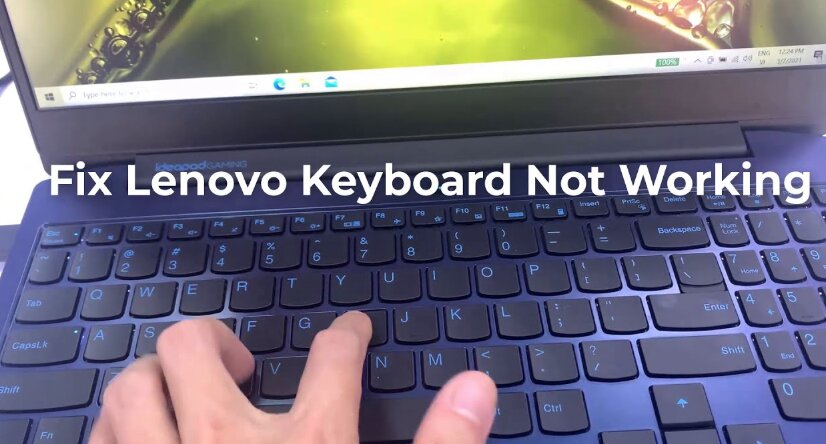
A keyboard that lights up normally but refuses to type can be frustrating. The RGB lighting may work, the keyboard may appear connected, and your computer may even recognize the device, yet no keystrokes register when you press the keys.
This issue affects both wired and wireless keyboards, including mechanical keyboards, gaming keyboards, office keyboards, and laptop keyboards. Fortunately, in most cases, the problem can be resolved without replacing the keyboard.
In this guide, I’ll explain the most common reasons a keyboard turns on but won’t type, how to diagnose the issue, and the steps you can take to get it working again.
Quick Answer
If your keyboard turns on but won’t type:
- Disconnect and reconnect the keyboard.
- Try a different USB port.
- Restart your computer.
- Check whether the keyboard works in BIOS.
- Disable Filter Keys or Sticky Keys.
- Reinstall keyboard drivers.
- Test the keyboard on another computer.
- Update keyboard firmware if available.
- Check for damaged switches or hardware failure.
If the keyboard works on another device, the issue is likely software-related. If it doesn’t work anywhere, the keyboard itself may be faulty.
Why Does a Keyboard Turn On But Not Type?
Many users assume the keyboard is broken because the keys do not respond. However, the fact that the keyboard powers on is an important clue.
RGB lighting, indicator LEDs, and wireless power systems often function independently from the keyboard’s input circuitry. This means the keyboard can receive power while still being unable to send keystrokes to the computer.
The problem typically falls into one of three categories:
- Software issues
- Connection problems
- Hardware failures
Let’s examine each possibility.
1. The Keyboard Is Receiving Power But Not Data
One of the most common causes is a communication failure between the keyboard and the computer.
The keyboard may receive power through the USB connection while data transmission fails.
Signs
- RGB lights work
- Caps Lock indicator turns on
- No keys register
- Device appears connected
How to Fix It
- Disconnect the keyboard.
- Wait 30 seconds.
- Connect it to a different USB port.
- Avoid USB hubs if possible.
- Try a USB port directly on the motherboard.
A faulty USB port can provide power without successfully transferring data.
2. The Computer Needs a Restart
Temporary software glitches can interfere with keyboard input.
Operating systems occasionally fail to initialize USB devices correctly after waking from sleep, installing updates, or recovering from crashes.
How to Fix It
- Save any work if possible.
- Restart the computer completely.
- Disconnect and reconnect the keyboard after startup.
Many keyboard detection issues disappear after a clean reboot.
3. Filter Keys Is Enabled
Windows includes accessibility features that can accidentally interfere with normal typing behavior.
Filter Keys ignores brief or repeated key presses and can sometimes make the keyboard appear unresponsive.
How to Disable Filter Keys
- Open Settings.
- Select Accessibility.
- Choose Keyboard.
- Turn Filter Keys off.
After disabling the feature, test the keyboard again.
4. Keyboard Drivers Are Corrupted
Keyboard drivers allow the operating system to communicate with the hardware.
A corrupted or outdated driver can prevent keystrokes from registering even when the keyboard appears connected.
Reinstall Keyboard Drivers
- Open Device Manager.
- Expand Keyboards.
- Right-click your keyboard.
- Select Uninstall Device.
- Restart your computer.
Windows will usually reinstall the correct driver automatically during startup.
5. The Keyboard Is Locked
Some keyboards include built-in lock functions.
Gaming keyboards and mechanical keyboards sometimes have:
- Keyboard Lock Mode
- Tournament Mode
- Windows Key Lock
- Function Layer Lock
These modes can accidentally disable certain or all keys.
How to Check
Look for:
- Lock icons
- Dedicated gaming mode buttons
- Function key combinations
Consult your keyboard manual if you are unsure.
6. Wireless Connection Problems
Wireless keyboards can power on successfully while failing to communicate with the receiver.
Common Causes
- Bluetooth pairing failure
- Low battery levels
- Receiver interference
- Corrupted wireless profiles
Solutions
- Replace batteries.
- Recharge the keyboard.
- Re-pair Bluetooth devices.
- Reinsert the wireless receiver.
- Move the receiver closer to the keyboard.
Wireless communication issues are often mistaken for hardware failure.
7. Firmware Issues
Many modern keyboards use onboard firmware to manage key scanning, RGB effects, macros, and wireless functionality.
A failed firmware update can leave the keyboard powered but non-functional.
Symptoms
- RGB works normally
- Keys do not register
- Keyboard software cannot detect the device
Potential Fix
Visit the manufacturer’s support page and check for:
- Firmware recovery tools
- Firmware updates
- Factory reset procedures
Always follow official instructions carefully.
8. The Keyboard Works in BIOS but Not in Windows
Testing inside BIOS is one of the fastest ways to isolate the problem.
How to Test
- Restart your computer.
- Enter BIOS during startup.
- Try navigating using the keyboard.
Results
Keyboard works in BIOS
The hardware is likely functioning correctly.
The issue is probably:
- Drivers
- Windows settings
- Third-party software
- Security software conflicts
Keyboard does not work in BIOS
The issue is more likely:
- Hardware failure
- USB communication problem
- Firmware corruption
This simple test can save hours of troubleshooting.
9. Mechanical Switch Failure
Mechanical keyboards can develop switch-related problems over time.
Although a single failed switch is common, widespread switch failures may indicate a deeper issue.
Possible Causes
- Liquid damage
- Dust buildup
- PCB damage
- Faulty hot-swap sockets
What to Do
If only a few keys fail:
- Clean the switches.
- Replace faulty switches if the keyboard is hot-swappable.
If most keys fail:
- Investigate PCB or controller issues.
10. Liquid Damage
Even small spills can damage keyboard circuitry.
Many users clean the visible liquid but miss moisture trapped beneath switches and components.
Signs of Liquid Damage
- Multiple keys fail
- Random key behavior
- Keys stop responding gradually
- Corrosion on internal components
Recommended Action
Immediately:
- Disconnect power.
- Remove batteries.
- Allow thorough drying.
If corrosion has developed, internal cleaning or replacement may be required.
11. Faulty USB Cable
A damaged cable can partially function.
In some situations:
- Power wires remain intact.
- Data wires fail.
The keyboard lights up normally but cannot transmit keystrokes.
How to Check
- Inspect the cable for bends or damage.
- Test another cable if removable.
- Test the keyboard on another device.
Cable failure is surprisingly common on heavily used gaming keyboards.
How to Tell Whether the Keyboard or Computer Is the Problem
The fastest diagnostic method is testing the keyboard on another computer.
If the Keyboard Works Elsewhere
The issue is likely:
- Drivers
- Operating system settings
- USB ports
- Software conflicts
If the Keyboard Fails Everywhere
The issue is likely:
- Hardware failure
- Firmware corruption
- Cable damage
- Internal PCB problems
Cross-testing removes much of the guesswork.
Preventing Keyboard Input Problems
While not every failure is avoidable, good maintenance can reduce the risk of future issues.
Best Practices
- Keep liquids away from the keyboard.
- Clean dust regularly.
- Update firmware only when necessary.
- Avoid excessive cable strain.
- Use quality USB ports.
- Store wireless receivers safely.
- Recharge wireless keyboards before batteries become critically low.
Proper care can significantly extend keyboard lifespan and reliability.
Frequently Asked Questions
Why does my keyboard light up but not type?
The keyboard may be receiving power but not transmitting data. Common causes include driver problems, faulty USB ports, damaged cables, firmware issues, or hardware failure.
Can a bad USB port cause this issue?
Yes. Some damaged USB ports still provide power while failing to transfer data properly.
Why does my keyboard work in BIOS but not Windows?
This usually indicates a software-related problem such as corrupted drivers, accessibility settings, or operating system conflicts.
Should I replace my keyboard immediately?
Not necessarily. Most cases are caused by software, connection, or driver issues that can be fixed without purchasing a new keyboard.
Final Thoughts
When a keyboard turns on but won’t type, the issue is usually more complex than a simple loss of power. The keyboard’s lighting system and input system often operate separately, which explains why RGB effects may function while keystrokes fail to register.
In my experience, the quickest troubleshooting path is to test another USB port, restart the computer, reinstall drivers, and verify whether the keyboard works on a second device. These steps identify the root cause in most situations and help determine whether you’re dealing with a software problem or a hardware failure.
By following the diagnostic process outlined above, most users can restore functionality without replacing their keyboard.